1. How do I deactivate my product?
¶ How do I deactivate my product?
The first thing is to completely UNINSTALL the existing Reallusion program from the computer you are not going to use, while still connected to the internet. This will help you free up your licenses. However if this is not possible, you can still proceed to deactivation as below:
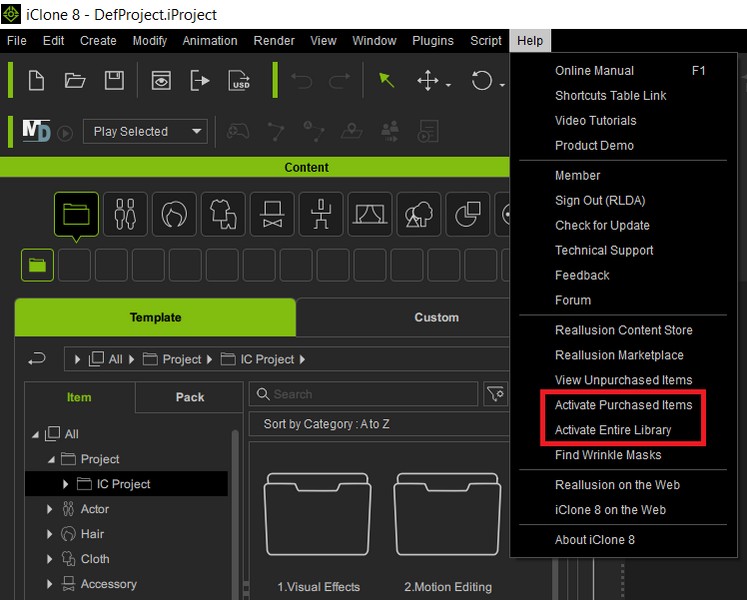
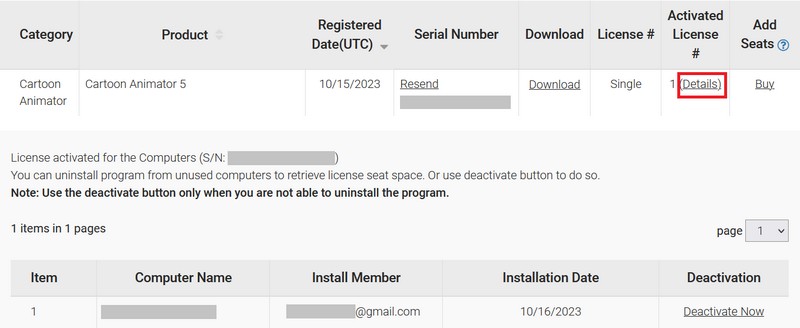
Go to your member account - Registration page. If you have registered your product serial number, then you will see your product "Activated Number". Click the "Details" link, then your product activation information will be displayed in the page bottom. Finally, click "Deactivate Now" to deactivate your product.
2. How to fix "license is exceeded the installed number"?
¶ How to fix "license is exceeded the installed number"?
If you see below pop up message when you try to install Reallusion program.
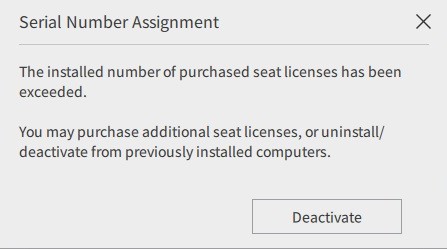
It means you have purchased "N" seats license of Reallusion software and you have installed it on "N" computers already. You can uninstall the program from unused computers to restore license seat space, or you can perform one of the following: -
- Deactivate your license seat: Click the "Deactivate" button to login to your member account. You will be directly linked to your product registration record. If you have registered your product serial number, you will see your product in the "Registration" page. Please refer to 1. How do I deactivate my product?
Note: Use the deactivate button only when you are not able to uninstall the program.
- Buy more seats for your license: Click the "Purchase" button to login to your member account. If you have registered your product serial number, you will see your product in the "Registration" page. Click the "Buy" link under the "Additional License" column. Then you can purchase more seats for your product.
3. How to fix the reCAPTCHA verification failed error?
¶ How to fix the reCAPTCHA verification failed error?
We have implemented Google reCAPTCHA into the Reallusion member login to eliminate malicious activity. The "CAPTCHA verification failed" error is from Google (NOT from Reallusion). Usually, we suggest that users do the following: -
- Try again later and restart the computer.
- Make sure the browser is up to date.
- Use another internet browser like Firefox, Opera, & etc.
- Use another computer --or-- turn on/off the modem with a brand new IP address.
- Log into their Reallusion member account on another device like a mobile phone.
- Manually enter email address and password, instead of browser autofill login credentials.
- Directly connect to the network instead of using a VPN/proxy/firewall.
- Clear browser cache and cookies.
- Delete the "User Data" folder in Chrome, and restart Chrome.
Know more: https://www.technewstoday.com/recaptcha-not-working/ - Deactivate browser extensions.
- Disable Ad Blockers.
- Enable JavaScript.
- May Google for more help.
On top of that, avoid using bland email addresses such as: -
contact@yourdomain.com
office@yourdomain.com
admin@yourdomain.com
info@yourdomain.com
If you are using the above generic email addresses, then we suggest changing your email address: -
2. How do I change my personal profile data like email address, and password?
4. How to resolve a watermark issue?
¶ How to resolve a watermark issue?
There are many reasons for getting watermarks on DRM content.
Please check the following: -
-
DRM-protected content can only be used by the same member account holder who purchased the content and program. Thus, making sure the purchased content is registered in the same member account as the main program. You can do a quick check on your member account - Order page.
-
Logout and re-login to Reallusion Hub (https://www.reallusion.com/hub/) with your valid member account that registered/purchased your product.
May uninstall and reinstall again the content pack. After this, refresh the Smart Content Manager for the up-to-date content state.
-
Some content packs from the Content Store or Marketplace are classified as derivative content. This means that you must have certain base products already purchased and installed, for the pack to work without a watermark. Please carefully read the requirements on the product page.
-
Make sure you have updated your related Reallusion program to the latest update. Most of the time, the latest update is designed to resolve some watermark issues.
-
Please disable any proxy, and make sure that there is no security-firewall software that is blocking access to our DRM servers.
-
Ensure that you have an active internet connection when first using the contents in the pack. The pack cannot be used offline until the content has been verified at least once.
You may go to the program's Main menu, Help > Activate Entire Library to ensure that all your contents have been activated successfully before using them offline.You also can select Help > Activate Purchased Items to authenticate online, in order to remove the watermarks after the trial contents have been purchased.