1. How do I find my purchased content?
¶ How do I find my purchased content?
Ensure your program has the latest version since our program does not have backward compatibility. If not, kindly update your software in Reallusion Hub and then reopen the program:
https://www.reallusion.com/iclone/update.html
https://www.reallusion.com/character-creator/update.html
https://www.reallusion.com/cartoon-animator/update.html
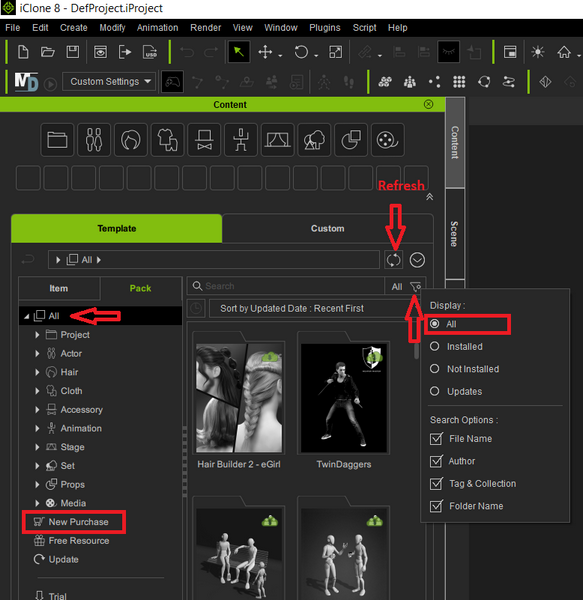
Once done, click the "Refresh" button at the top right of the Smart Content Manager to refresh your content state.
Try also select "Activate Purchased Items" from the "Help" program main menu to activate your purchased items.
After this, try to search for your content under the Template's "Pack" tab for all packs, and also the "Item" tab for all items. For newly purchased content, may check the "New Purchase" section.
Important Note: Make sure the search filter is switched to "All", and the "Online" option is selected in the Smart Content Manager menu.
This is the iClone 8 sample, all the functionality is almost the same across the product line.
For Cartoon Animator 5 interface, check this:
1. How do I find the purchased content pack?
Whereas for more information on searching method, please refer to:
https://manual.reallusion.com/content-manager/2.0/01-user-interface/search-field-filter.htm
2. How do I restore the Smart Content Manager's database to the default?
¶ How do I restore the Smart Content Manager's database to the default?
- Download the Reset Database Tool:
https://file.reallusion.com/support/ResetDB_IC8CC4CC5CTA5.zip - Close Character Creator 5/iClone 8/Character Creator 4/Cartoon Animator 5 program.
- Uncompress the "ResetDB_IC8CC4CC5CTA5" to local drive.
- Double click the related .bat file to run it.
Eg: For iClone 8, use "Reset IC8 Database and Registry.bat" and so forth. - Wait around 30 seconds for rebuilding the database.
- Done.
3. How do I reset the Smart Gallery's database to restore default?
¶ How do I reset the Smart Gallery's database to restore default?
- Download the reset database tool
https://file.reallusion.com/support/Reset Database_OfficialSG.zip - Follow the steps in the "How to.txt" file.
4. How to Download Content from ActorCore into iClone 8?
¶ How to Download Content from ActorCore into iClone 8?
All 3D contents in ActorCore are compatible with iClone 8.0 or above. Kindly follow the below instructions on how to download content from ActorCore to iClone.
Method 1:
Download with the Content Manager, please make sure Content Manager is installed first.
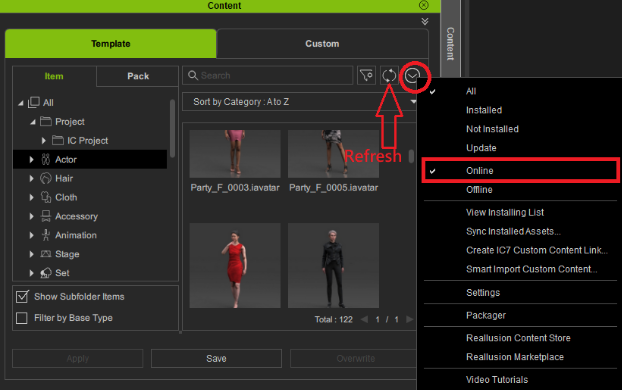
Click the Refresh button in the Content Manager, you will find the newly purchased content in its sub-category folder(Actor/Animation/New Purchase). You may even search it with the search bar.
Method 2:
-
First, launch your iClone.
-
Go to the below link, log into your account, and then click on your purchased items:
https://actorcore.reallusion.com/inventory
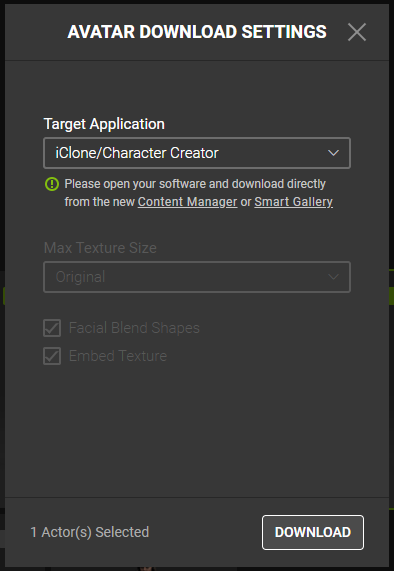
Click the Download button at the right-lower corner to open the Download Setting panel. -
Select "iClone/Character Creator" under “Target Application”, and then see the "Download" button as the below image:
-
Make sure you have launched your iClone beforehand, then click on the "Download" button to start the download.
-
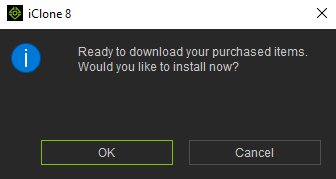
Go to iClone and click the "OK" button on the pop-up window to start downloading your purchased items.
- You can find your purchased items in the below folders inside the iClone Content Manager:
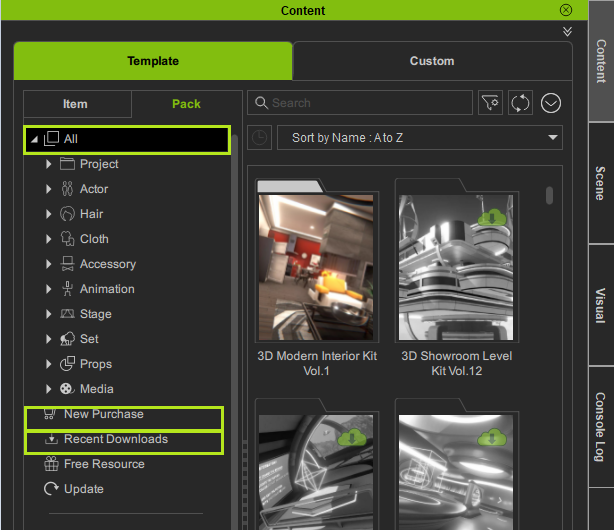
a) All > Actor: You can see all the downloaded actors.
b) All > Animation: You can see all the downloaded motions.
c) New Purchases: Items you have recently purchased within 30 days.
d) Recent Downloads: Items you have downloaded from the ActorCore website.
5. Installation Steps for OpenPlugin
¶ Installation Steps for OpenPlugin
-
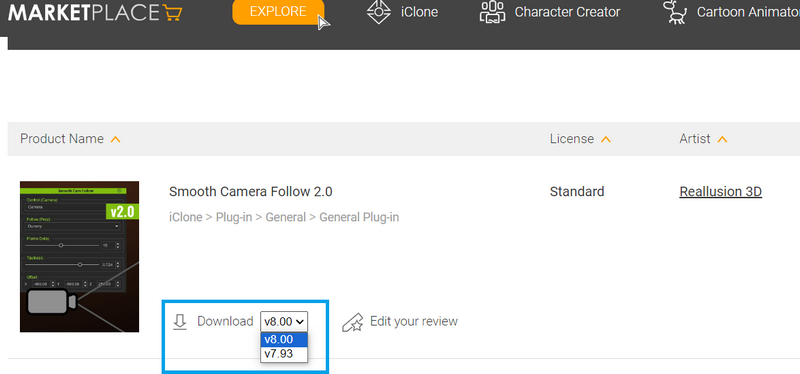
Download your OpenPlugin from Marketplace Plugin Inventory:
https://marketplace.reallusion.com/inventory-list?plugin=1 -
Make sure to download the proper version. (v8.00 for iClone 8, v7.93 for iClone 7)
-
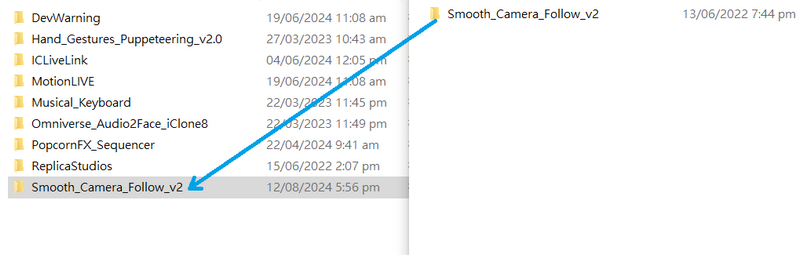
Unzip the file and copy the entire folder.
(Note: Sometimes an extra folder would be created automatically by your zip software, just make sure to copy the main plugin folder) -
Right-click on the iClone icon > Properties > click on [Open file location].
Go into OpenPlugin folder
(The default file location should be: C:\Program Files\Reallusion\iClone 8\Bin64\OpenPlugin)
-
Paste the plugin folder.
-
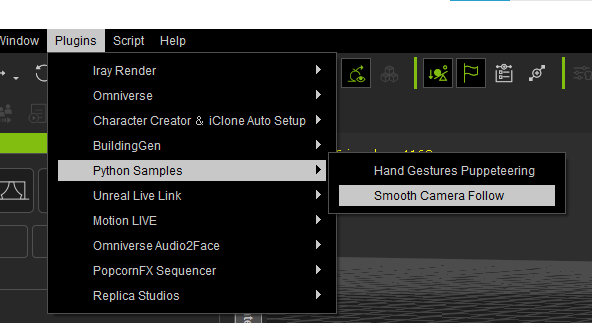
Launch iClone, the plugin will be in Plugin menu > Python Samples
===Install plugin manually===
Here is another way to install plugin if iClone does not load the plugin.
In Script menu > Load Python > Find the plugin folder and select [main.py] > Click [OK].
The plugin will be installed in Plugin menu.
More info: https://youtu.be/K9fKrBxczhA?feature=shared
6. Changing Language for iClone 8?
¶ Changing Language for iClone 8?
Please update to iClone v8.02 or above.
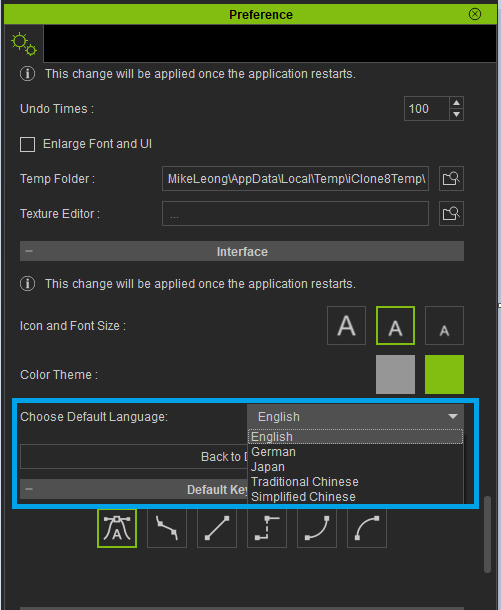
Go to Edit > Preference > Interface section > Choose Default Language.
( Supported language: English, German, Japanese, Traditional Chinese, Simplified Chinese )
Restart iClone after changing the language.
7. Can iClone 8 be used together with CC3, OR can iClone 7 be used together with CC4?
¶ Can iClone 8 be used together with CC3, OR can iClone 7 be used together with CC4?
No. Only the same generation software can be synced together. For instance, CC3 can transfer character to iClone 7, or CC4 can transfer character to iClone 8.
Take note that iClone 8 and CC4 are backwards compatible, meaning that iClone 8 can read iClone 7 projects.
Also, the Content Manager in iClone 8 and CC4 can read contents which were created using iClone 7and CC3.
Content Sharing with iClone 8 and Character Creator 4:
https://youtu.be/AwqFqrOV3lE
8. Why can't I install content using the Downloader in IC8/CC4?
¶ Why can't I install content using the Downloader in IC8/CC4?
In IC8/CC4, the Smart Gallery is integrated into the Content Manager and called Smart Content Manager. Basically, the user can't install content via the Downloader (installcontent.rlcontent), nor the legacy .exe installer. This can only be done through the Smart Content Manager. See this manual on how to download the content:
https://manual.reallusion.com/content-manager/2.0/04-downloading-contents/downloading-purchased-contents.htm
9. What is the relationship between the Motion LIVE Plug-in and a Profile?
¶ What is the relationship between the Motion LIVE Plug-in and a Profile?
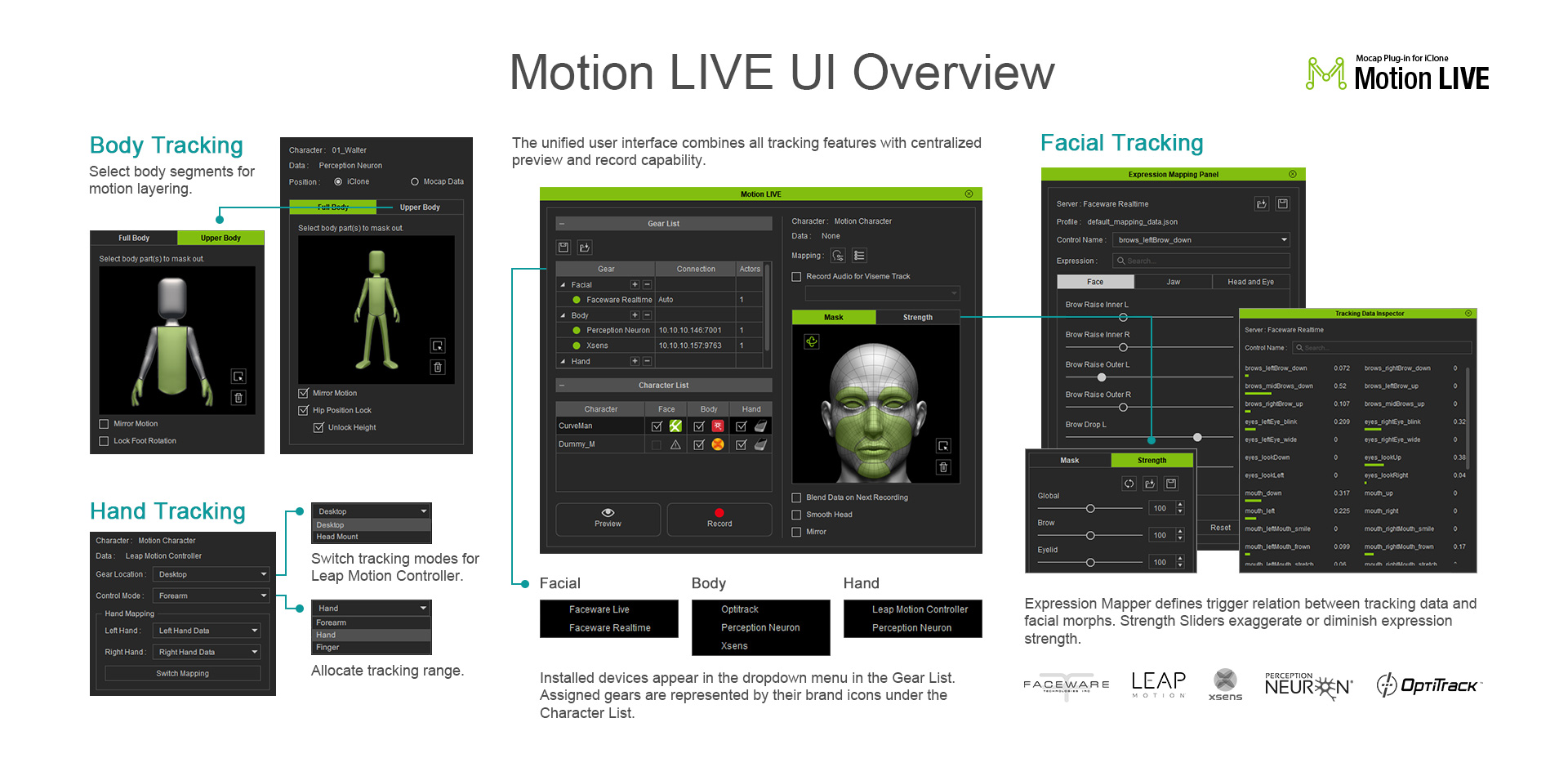
The Motion LIVE Plug-in is an integrated mocap plug-in for iClone which supports synchronous data capture from multiple mocap devices, whereas a Profile is a specific data streaming protocol to a specific mocap device.
You will need to install both along with their corresponding mocap devices to capture motion data. The Motion LIVE Plug-in can connect to different profiles at the same time in a one-to-many relationship.
10. Can different Mocap devices work at the same time?
¶ Can different Mocap devices work at the same time?
With the Motion LIVE Plug-in; Facial Expressions, Body Motions and Hand Gestures can work together to capture all the motion data at the same time. The Motion LIVE Plug-in is an integrated mocap plug-in architecture that will synchronize multiple data streams. With this, we aim to give users higher flexibility when using multiple device setups.