1. How do I find the purchased content pack?
¶ How do I find the purchased content pack?
In the CTA5 Content Manager, switch to "Pack" mode and click on the "Refresh" button. Make sure that the filter is set to "All" and then search for the name of the content pack.
For more detailed instructions on how to search for content, you can refer to our online manual at this link:
https://manual.reallusion.com/Content-Manager/2.0/01-user-interface/search-field-filter.htm
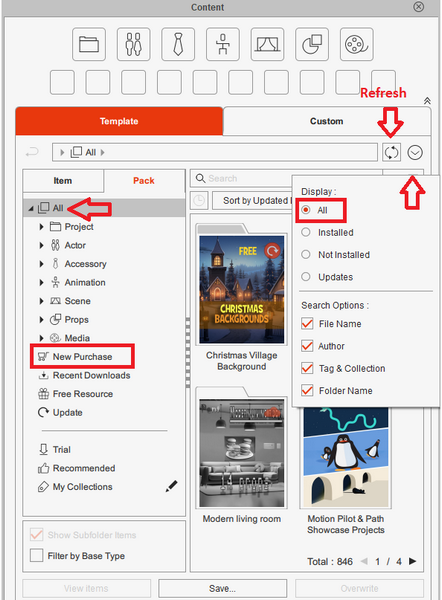
The body part content can be found in the Composer Mode content manager. To locate it, first load a G3 character (make sure to use the corresponding character type). Then, go to "Composer Mode," open the Content Manager panel, and select the "Pack" category. Make sure to stay in the "All" folder, and you should be able to search for the body part content here.
Once you've found it, double-click on the pack. You will then be able to find the head component under the "Head" folder, as shown here.
2. How do I install content packs if I have already purchased CTA5?
¶ How do I install content packs if I have already purchased CTA5?
Same as IC8/CC4, the content manager has been upgraded and called the Smart Content Manager.
Basically, the user can't install content via the Downloader (installcontent.rlcontent), nor the legacy .exe installer. This can only be done through the Smart Content Manager.
See this manual on how to download the content:
https://manual.reallusion.com/content-manager/2.0/04-downloading-contents/downloading-contents.htm
3. How to Find Additional Facial Components for G2 Characters
¶ How to Find Additional Facial Components for G2 Characters
- Select any G2 character.
- Enter Composer mode.
- In the right-side Content Manager, select "Head" to view the available G2 facial components.
Note: G2 facial component options do not display for G3 characters. Ensure that the selected character format is compatible.
4. How do I move my content from CTA4 to CTA5?
¶ How do I move my content from CTA4 to CTA5?
For purchased content packs, we recommend that you download and install all purchased content directly from the CTA5 content manager. Please see this FAQ for the installation method:
2. How do I install content packs if I have already purchased CTA5?
For the content files that are saved in Custom, you can directly go to Content Manager Settings > click "Smart Import Custom Content", select the custom content folder and it will automatically sync all content files stored in the folder.
CTA4 Default Custom Content folder path:
C:\Users\Public\Documents\Reallusion\Custom\Cartoon Animator 4 Custom
Kindly also check this tutorial video for the process: -
https://courses.reallusion.com/home/smart-gallery/smart-content-manager-for-cta-5/getting-started?v=cartoon-animator-5-accessing-legacy-assets-from-cartoon-animator-4
5. How do I access the CTA5 PSD/SVG template files and whitepaper?
¶ How do I access the CTA5 PSD/SVG template files and whitepaper?
The CTA5 PSD/SVG template files can be installed directly from the Cartoon Animator 5 product page, link below:
https://www.reallusion.com/cartoon-animator/custom-2d-character.html
Alternatively, you can also download the template files directly using the following links:
PSD: https://file.reallusion.com/cta/Cartoon_Animator_5_PSD_Pipeline_Resource.zip
SVG: https://file.reallusion.com/cta/Cartoon_Animator_5_Vector_Pipeline_Resource.zip
6. How do I get free upgrades to my profiles for CTA5?
¶ How do I get free upgrades to my profiles for CTA5?
For existing CTA4 plugin users, you can freely upgrade your CTA4 plugins to be compatible with CTA5.
Here's the redeem link:
https://www.reallusion.com/campaign/default.html?cid=301&chk=fd84d4553a7ddf239e66d455c4e3e92c
Please note that if you purchased a CTA4 bundle with a plugin after Sep 1st, 2022, then you've got the plugins serial numbers for CTA5 and the plugins serial numbers for CTA5 in the same order. Kindly check in the product registration page:
https://www.reallusion.com/member/#/en/registration
7. How can I receive a Cartoon Animator 5 Training (previously known as Cartoon Animator 5 Training 6-in-1 Bundle)?
¶ How can I receive a Cartoon Animator 5 Training (previously known as Cartoon Animator 5 Training 6-in-1 Bundle)?
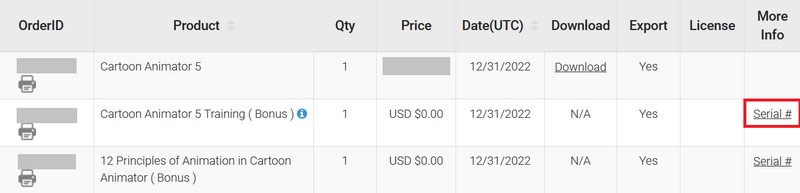
Go to “Order History” to view the Cartoon Animator 5 Training (& 12 Principles of Animation in Cartoon Animator) information by clicking the Serial #:
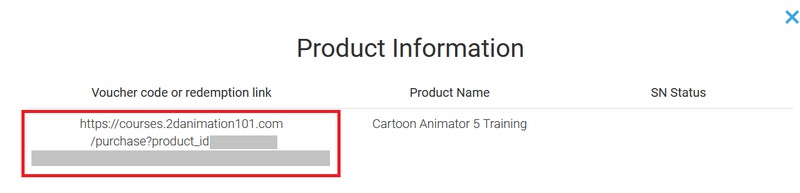
- Visit the link provided under "Voucher code or redemption link" by entering it into your browser's address bar.
- When the 2D Animation 101 site is loaded, create an account to access the training courses.
- By signing up, the training bundle is redeemed automatically.
- Be aware that subsequent use of the redemption link will direct you to the paid course.
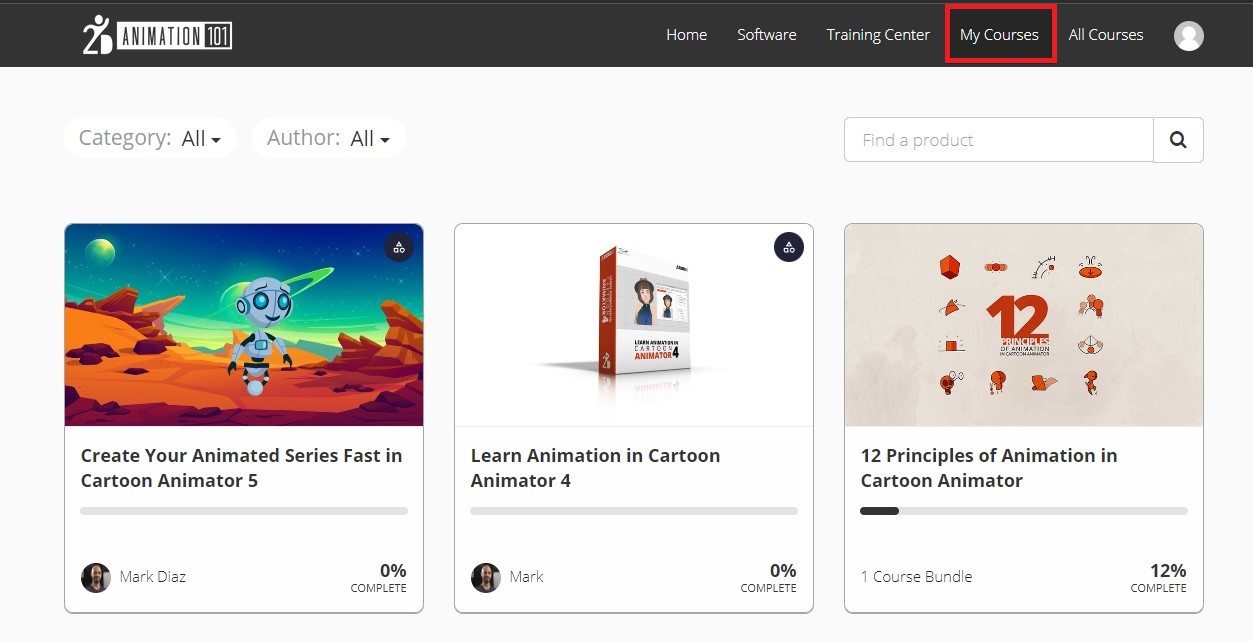
- To verify your free access to the course material, visit "My Courses".
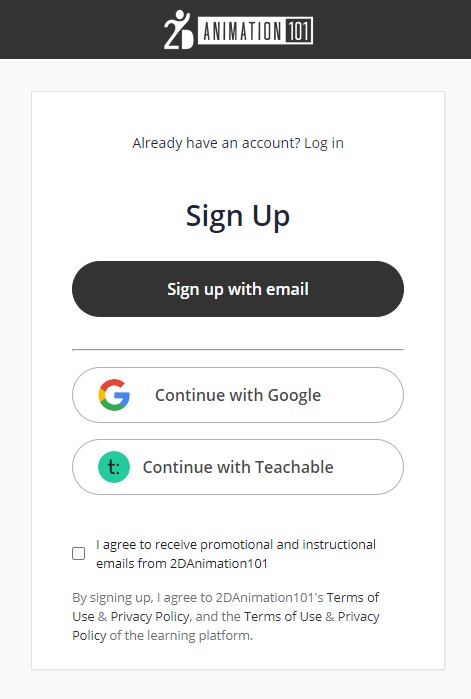
After successful logging in, you can click “My Courses” to start to view these online courses.
Courses included: -
- Create Your Animated Series in Cartoon Animator 5
- Adobe Illustrator Essentials for Vector Characters
- Learn Animation in Cartoon Animator 4
- Animate a Painting in Cartoon Animator 4
- Good Timing in Animation in Cartoon Animator 4
- Save Time in Face Animation in Cartoon Animator 4 Pipeline