1. AccuFACE 2 System Requirements
¶ AccuFACE 2 System Requirements
Minimum Requirements
Software:iClone v8.74 or above
OS:Windos 10, 11 64 bit
Ram:16GB main memory or higher
GPU:Nvidia RTX 2060 / AMD RX 5700 or higer
Camera:Webcam or head-mounted camera:1280x720, 30 fps or higher
Supported Video Formats:AVI, WMV, MP4, and MOV - Codecs required for certain video format
2. AccuFACE 2.0 Fails to Launch Due to Runtime or CUDA Initialization Errors
¶ AccuFACE 2.0 Fails to Launch Due to Runtime or CUDA Initialization Errors
Problem
AccuFACE 2 fails to launch due to system environment or initialization issues. The application may not open at all, or it may display a component import error during startup. This issue most commonly occurs after a Windows update, changing the graphics card, or updating the NVIDIA graphics driver.
Cause
This issue is typically caused by operating system or graphics driver updates that disrupt the runtime environment required by AccuFACE.
Common causes include:
- Microsoft Visual C++ Redistributable is missing or corrupted. A Windows update may remove or damage the Visual C++ runtime required by AccuFACE.
- Invalid CUDA environment variables remain after a driver update. An incomplete NVIDIA driver uninstall may leave behind outdated or incompatible CUDA environment variables, or Windows may continue referencing an obsolete CUDA installation path. As a result, the embedded AI engine used by AccuFACE (ONNX Runtime) may fail to initialize or import required components such as onnxruntime.dll.
Note: These issues are caused by changes to the Windows operating environment or NVIDIA CUDA driver installation, and are not indicative of a problem with AccuFACE itself.
Solution
Follow the steps below to resolve the issue.
Step 1. Repair or reinstall the Microsoft Visual C++ Redistributable
- Download the latest Microsoft Visual C++ Redistributable (x64) from the official Microsoft website.
- Run the installer and follow the on-screen instructions.
- If the runtime is already installed, choose Repair to restore any missing or corrupted components.
Step 2. Remove invalid CUDA environment variables
- Press Win + R, type sysdm.cpl, and press Enter.
- Open the Advanced tab and click Environment Variables.
- Under System variables, select Path, then click Edit.
- Look for entries referencing CUDA or NVIDIA.
- Remove any entries that point to missing, invalid, or obsolete directories.
- Click OK to save your changes.
- Restart your computer and launch AccuFACE again.
3. AccuFACE 2 Webcam Timecode Synchronization Issues with Tentacle Sync
¶ AccuFACE 2 Webcam Timecode Synchronization Issues with Tentacle Sync
Problem
Inability to synchronize the AccuFACE 2 Webcam recording timecode with Tentacle Sync. When using Tentacle Sync hardware or attempting to configure the webcam recording timecode, the timecode cannot be overwritten or controlled by the external Tentacle Sync device.
Cause
The AccuFACE 2 Webcam recording function does not currently support direct timecode input from external Tentacle Sync devices. Instead, AccuFACE 2 generates a recording timecode using the computer's system clock.
If the system clock is not synchronized with the Tentacle Sync master clock, the recorded timecode will not match footage captured by other recording devices.
Solution
Synchronize your computer's system clock with the Tentacle Sync master clock before recording.
- Launch the official Tentacle application, such as Tentacle Timecode Tool or Tentacle Setup App.
- Use the application's synchronization function to sync your computer's system clock with the Tentacle Sync device or master timecode source.
- Verify that both the system clock and Tentacle Sync device are synchronized.
- Launch AccuFACE 2 and begin recording. The generated timecode will now match the synchronized system clock, ensuring proper timecode alignment with other recording devices.
4. AccuFACE 2 Video Mode Face Tracking Failure Due to Variable Frame Rate Videos
¶ AccuFACE 2 Video Mode Face Tracking Failure Due to Variable Frame Rate Videos
Problem
After switching AccuFACE to Video mode and importing a video, AccuFACE is unable to recognize the face and extract facial landmarks, or playback becomes unstable, making it impossible to capture facial performance.
Cause
This issue is typically caused by importing a Variable Frame Rate (VFR) video. AccuFACE relies on a consistent frame rate to synchronize AI motion tracking with the timeline and currently supports only **Constant Frame Rate (CFR) **videos. Since most smartphones, including iPhones and Android devices, record in VFR by default, the inconsistent timing can prevent AccuFACE from accurately reading and tracking facial motion.
Solution
Convert the video to Constant Frame Rate (CFR) before importing it into AccuFACE. A frame rate of 30 FPS or 60 FPS is recommended. Most video editing applications, such as CapCut and DaVinci Resolve, allow you to export or convert videos using a fixed frame rate. Once converted, reimport the CFR video into AccuFACE for reliable facial tracking.
5. How should I respond to a missing video codec error?
¶ How should I respond to a missing video codec error?
Supported Video Formats
These video (container) formats are supported: AVI, WMV, MP4, MKV, and MOV.
If you are still encountering the “Unable to open video due to missing video codec.” error, make sure to install the proper codec packs so your Windows system can parse the unfamiliar format.
How to install the required codecs?
You will need to install the corresponding video codec in order to read and play certain video formats.
- K-lite codec is a good place to acquire the bare essentials needed for multimedia playback.
- HEVC Video Extension is needed for shooting iPhone videos in HEIC/HEVC formats.
- HEIC = High Efficiency Image Container
- HEVC = High Efficiency Video Coding
*If you run into playback errors, even after installing the proper codecs, consider converting your video into a supported format. https://video-converter.com/ is a conversion site you can use for free.
6. Camera Specification
¶ Camera Specification
AccuFACE can access all connected cameras and their support frames rates and resolution. The available camera settings and options change according to the designated camera.
Example 1: Integrated laptop camera that can support 720p at 30 fps (stats viewable from Windows’ native ‘Camera’ application).
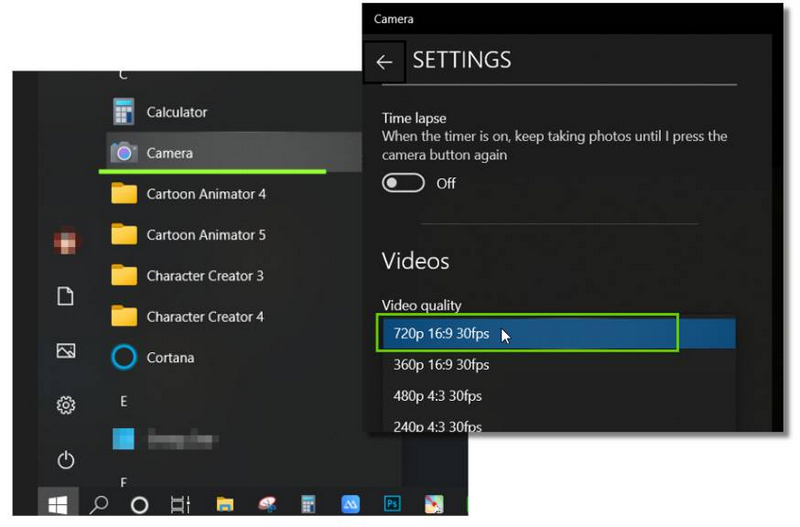
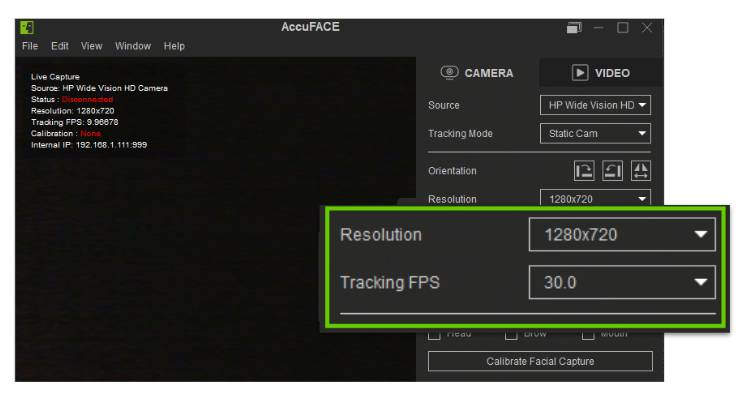
The options under AccuFACE > Camera will be based on the current equipment.
Example 2: High-quality webcam like Logitech Brio Ultra HD can capture 4K at 30 fps or 1080p up to 60 fps.
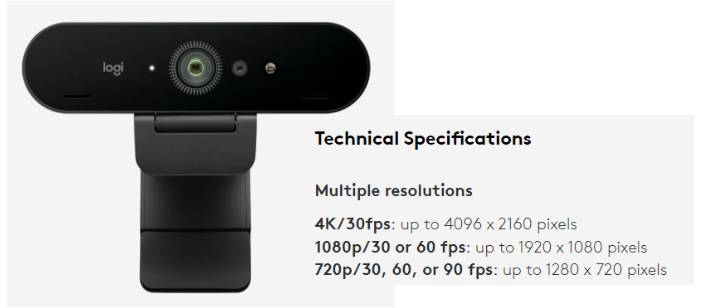
The options under AccuFACE > Camera will be based on the current equipment.
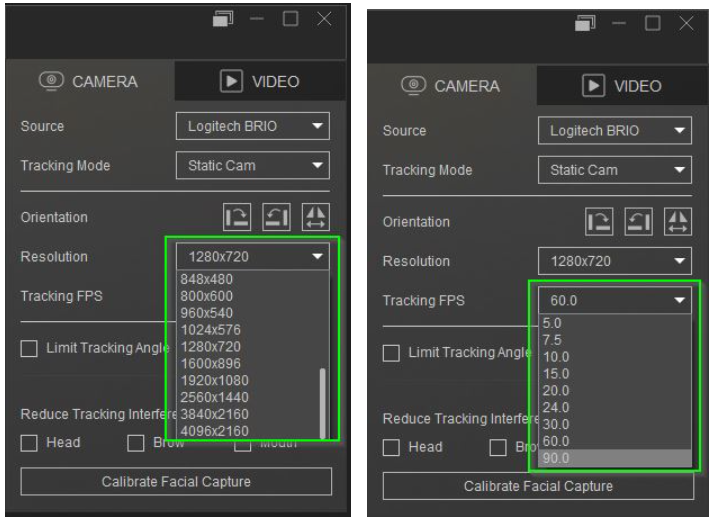
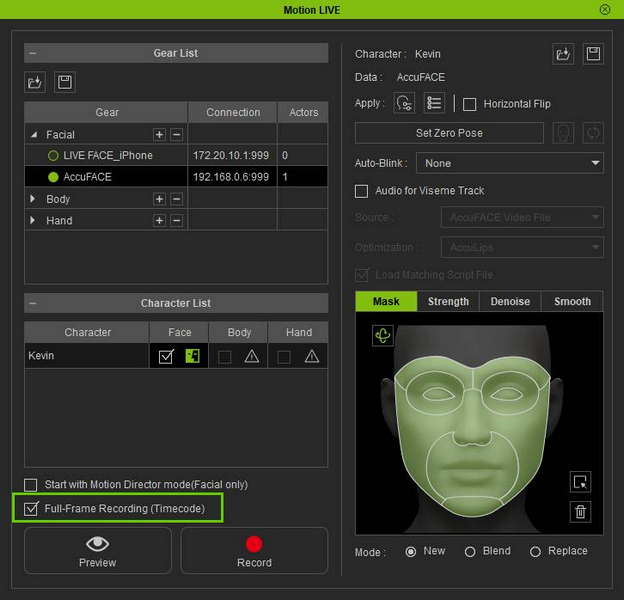
AccuFACE is set to capture 720p at 30 fps by default for smooth live tracking. This setting was found to have the best stability-to-performance ratio based on a barrage of stress tests. Experiment with 60 fps if you need higher-fidelity captures and if your equipment supports it. For lossless frame-by-frame mocap recording, make sure Full-Frame Recording (Timecode) is enabled.
7. How do I fix lags during facial tracking?
¶ How do I fix lags during facial tracking?
For Video Files
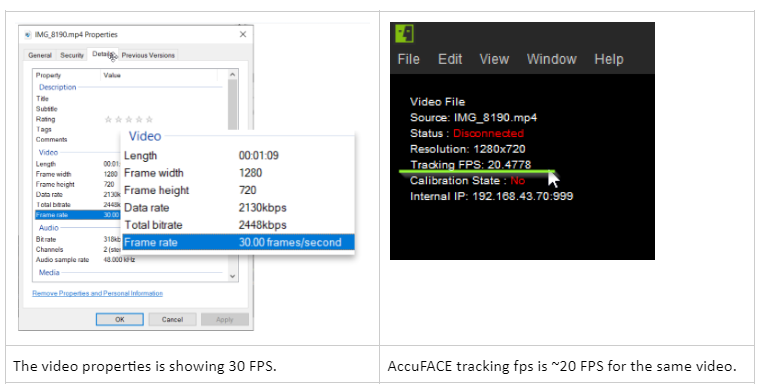
When track is applied to a video and AccuFACE is connected to Motion LIVE, previewing or recording can experience a mismatch between the audio and video track causing the performance to lag. See Lagging AccuFace fps for more information.
*By enabling Full-Frame Recording (Timecode), the mismatch and subsequent lag will only affect realtime preview, while the final recording will not suffer frame drops.
Checking discrepancy between AccuFACE and the source video frame rate
Under these circumstances, the AccuFACE tracking FPS will usually fall behind the source video. For example, when the source video frame rate is at 30.00 frames/second but the AccuFACE viewport stats show ~20, the tracking would have already fallen behind by ~10 frames.
For Live Captures
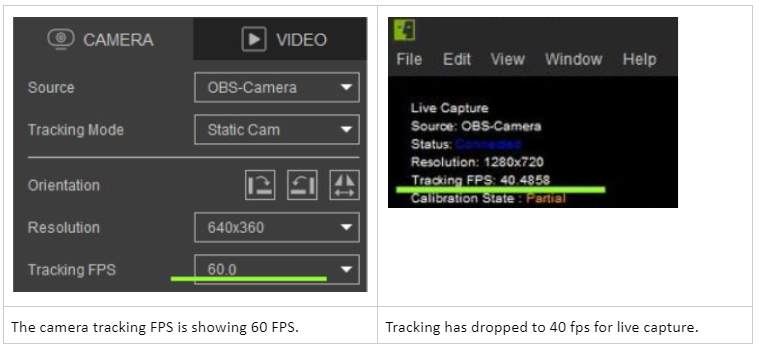
There will be times when the actor’s performance will suffer frame drops when AccuFACE is connected to Motion LIVE for preview or recording (see Lagging fps for AccuFACE live capture).
*By enabling Full-Frame Recording (Timecode), the mismatch and subsequent lag will only affect realtime preview, while the final recording will not suffer frame drops.
Checking if AccuFACE live capture fps is dipping below camera frame rate
Improving facial tracking FPS
You can try the following workarounds to free up additional system resources for AccuFACE realtime playback.
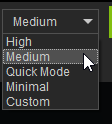
- Switch iClone render mode to ‘Medium’.
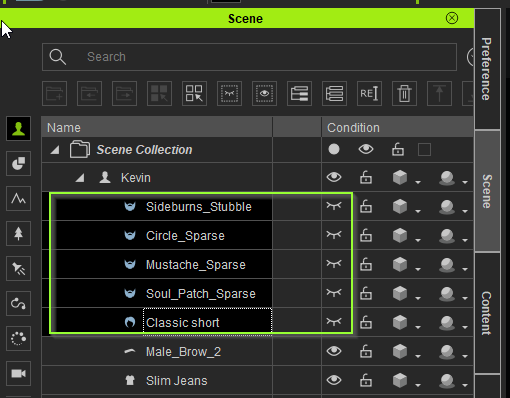
- Hide performance-intensive elements on the character like hairs and beards using the Scene Manager. This will reduce the load on the GPU.
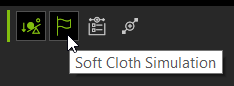
- Turn off soft-cloth simulation to free up additional resources.
- For additional ways to reduce the load on resources, consult iClone 8 Performance note - For Real-time Rendering or Playback.
- If all else fails, try reducing the source footage from 60 fps to 30 (Online Video Converter).
8. How do I prevent the tracking lag from affecting the recording?
¶ How do I prevent the tracking lag from affecting the recording?
By enabling Full-Frame Recording (Timecode), the mismatch and subsequent lag will only affect realtime preview, while the final recording will not suffer frame drops. The full-frame recording option is enabled by default.
9. What other types of cameras can be used for mocap?
## What other types of cameras can be used for mocap?Any camera that can be used for video conferencing is support, for example:
- Typical webcam or integrated laptop camera.
- Mobile devices and tablets: Android devices, iPhone, iPad using 3rd party applications like iVCam.
General instructions (for more detailed instructions, visit the iVCam website):
- Install iVCam for Windows.
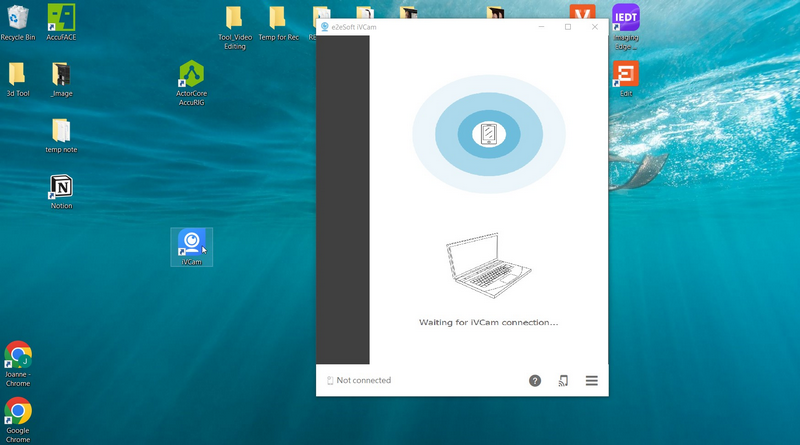
- Use your app store to find and install iVCam on your mobile device.
- Use the same WIFI network (both devices must be on the same network) or USB cable to establish a connection. The device will become a webcam. For more information, refer to Connect via Wi-Fi and Connect via USB.
- Launch AccuFACE and follow the basic operational instructions to start recording.
-
Action cameras:
Only action cameras that have webcam capabilities are supported. Refer to the following resources for more information:
- GoPro: How To Use Your GoPro As A Webcam
- Insta360 ONE R: 17 WebCam - ONE R Support
- Osmo Action 2 & 3:
. How to use Dji Osmo Action 3 as webcam - YouTube
. DJI Action 2 | File Transfer & Webcam - YouTube
Test sample:
- Insta360 ONE R + Rokoko Headrig
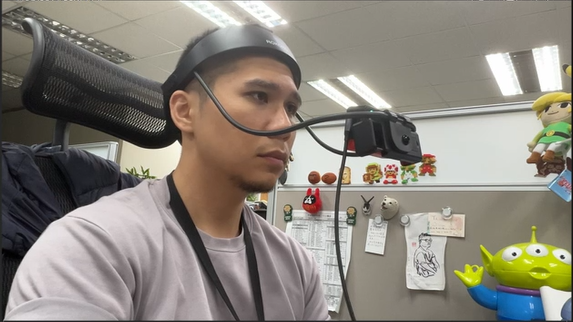
- Once a connection has been established, launch AccuFACE and follow the basic instructions for operation: Insta360 ONE R + Rokoko Headrig_Test
> Reminder: Older camera models lack webcam capabilities, making them incompatible with AccuFACE, as is the case with the Osmo Action 2019, for example.
- Digital Cameras and DSLRs:
Webcam support varies according to manufacturer. For example, Sony has a range of cameras with webcam support.
For other brands and models, please contact the original manufacturer.
Test sample - Sony ILCE-5100:- Download Imaging Edge Desktop | Sony.
- Download | Imaging Edge Webcam | Sony.
- Once installed, follow the direction on How to use | Imaging Edge Webcam | Sony to connect your camera with the computer.
- Launch AccuFACE and follow the basic operational instructions to start recording.
10. Why does turning my head affect the tracking negatively? (v1.0 Only)
¶ Why does turning my head affect the tracking negatively? (v1.0 Only)
AccuFACE tracks from rgb cameras to relay facial mocap data. Unlike the depth capabilities of the iPhone, a typical camera can not compensate for the loss of tracking data when the head is turned sideways (Limit Tracking Angle can reduce the tracking interference). For best results, you will need to ensure that the range of facial performance does not exceed the recommended head turn angles.
11. Why do the eyebrows twitch on my mocap character? (v1.0 Only)
¶ Why do the eyebrows twitch on my mocap character? (v1.0 Only)
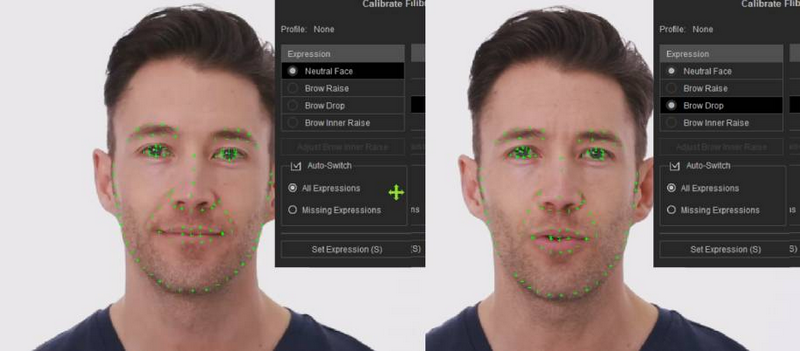
Setting the neutral face in the Calibrate Facial Capture tool is a necessary step; While other calibrations may be adjusted according to your requirements. If you are tracking from a video file and a proper frame can't be spotted for referencing, then skip the calibration procedure for that area. In principle, AccuFACE can track basic performances while the brow calibrations are there to strengthen and individualize brow movements.
*When the neutral and expressive calibrations are nearly identical, you are likely to experience jittery motions, especially in the form of twitching eyebrows.
If an expression morph is too identical to the neutral state of the face (like the neutral and ‘Brow Drop’ expression below) then the activated areas may twitch during a recording. You can see this play out in this video: When neutral and expression calibrations are almost identical - YouTube.