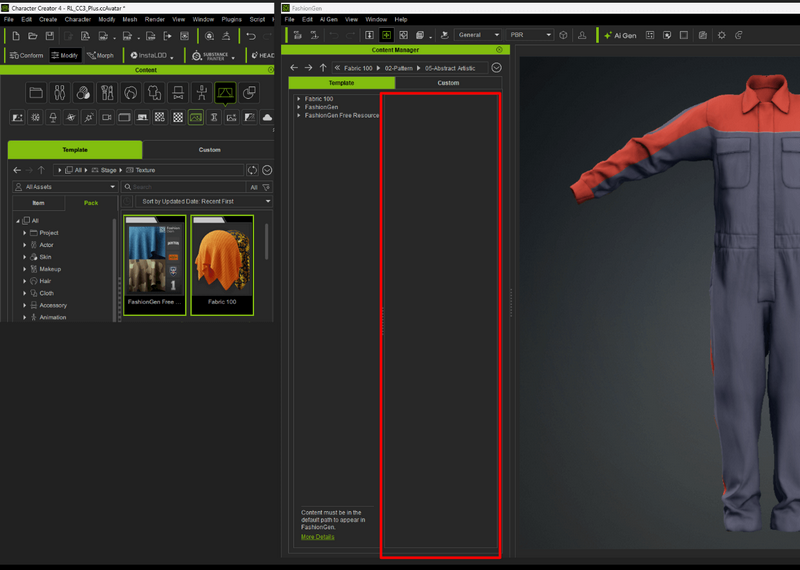
1. How can I make FashionGen asset packs for Character Creator appear in FashionGen (e.g. Fabric 100 or the FashionGen Free Resource) ?
¶ How can I make FashionGen asset packs for Character Creator appear in FashionGen (e.g. Fabric 100 or the FashionGen Free Resource) ?
Follow the steps below to move FashionGen content into the default installation path so that FashionGen can detect it.
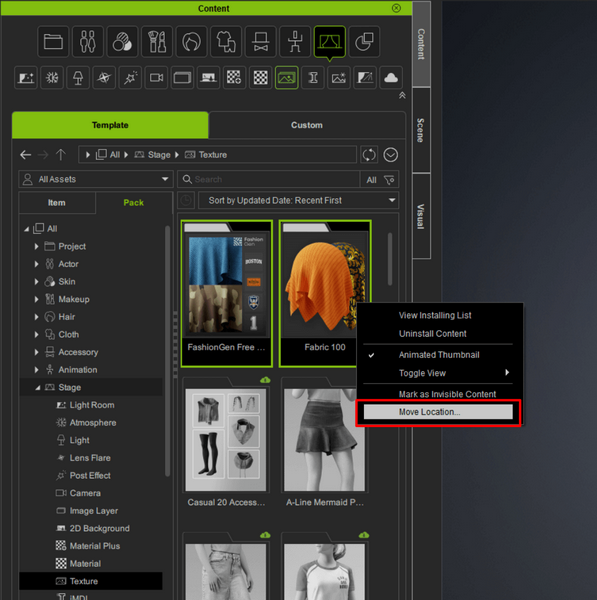
- Open CC Content Manager and locate the pack under “Template > Stage > Texture > FashionGen”.
- Select the pack, right-click it, and choose “Move Location”.
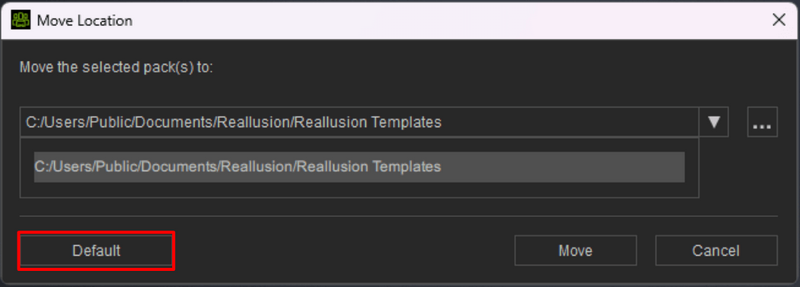
- In the pop-up dialog, click the Default button to reset the content path.
- Once completed, check to ensure that the content is available in the FashionGen Content Manager.
2. Why can’t I edit certain assets in FashionGen?
¶ Why can’t I edit certain assets in FashionGen?
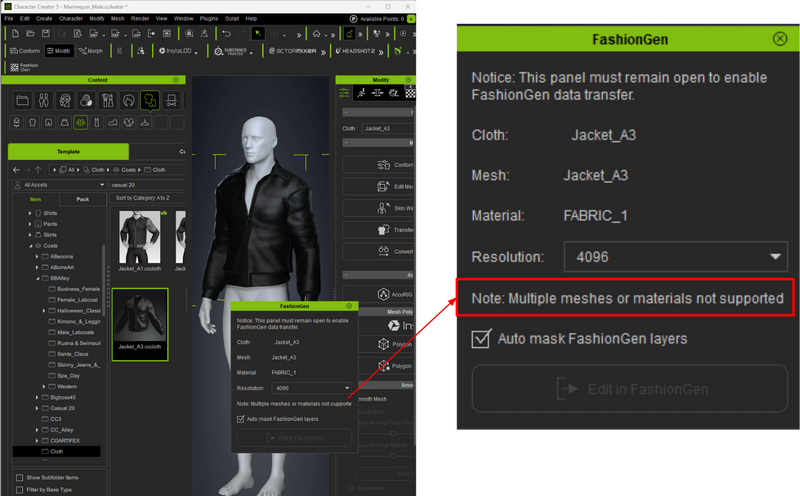
Assets that display the message “Note: Multiple meshes or materials are not supported” are not compatible with the current version of FashionGen. This limitation typically does not affect Reallusion-created content, as these assets are designed with a single-mesh, single-material structure to ensure full compatibility with FashionGen.
3. Why is transparency on clothing appearing opaque in FashionGen?
¶ Why is transparency on clothing appearing opaque in FashionGen?
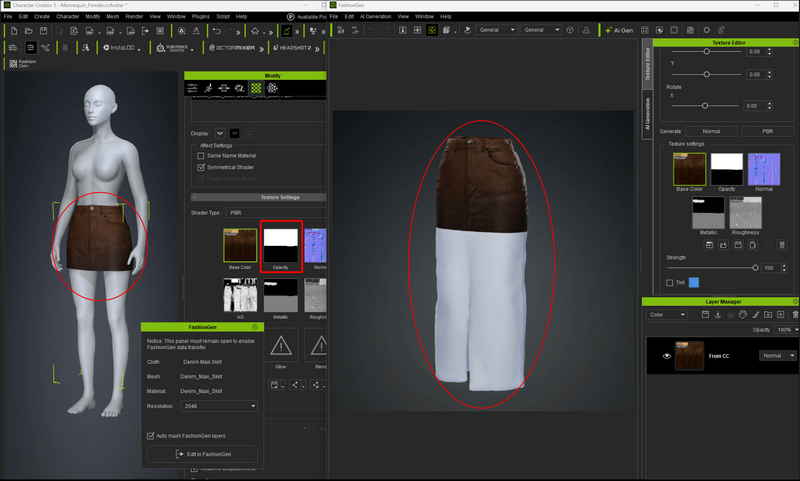
The real-time viewport in FashionGen does not support transparent rendering. As a result, transparent materials may appear opaque while working in FashionGen. Please note that FashionGen’s viewport is not representative of the final appearance; always check the actual visuals in Character Creator.
4. Why does the color of the clothes change when brought into FashionGen?
¶ Why does the color of the clothes change when brought into FashionGen?
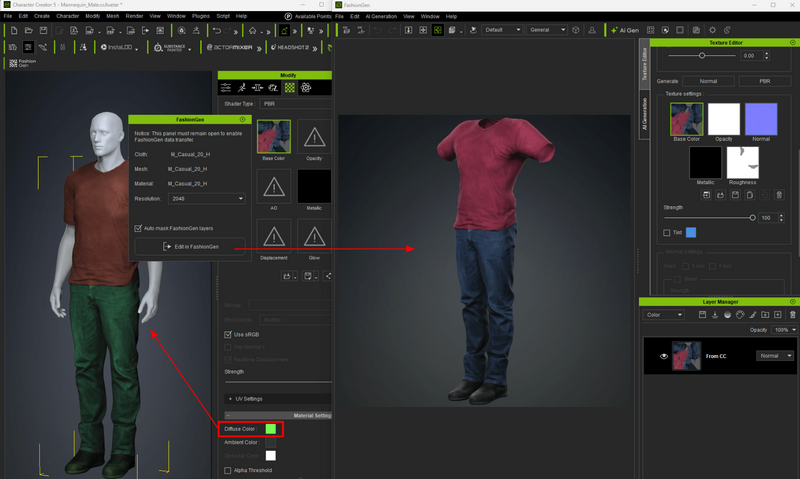
Please check whether the clothing material in Character Creator has had its color adjusted. FashionGen cannot read these color adjustments. To avoid color changes, it is recommended that you either reset the color tint to white before editing in FashionGen or replace the color directly within FashionGen. When the results are sent back from FashionGen to Character Creator, the original color will be overwritten.
This issue typically does not affect Reallusion-created content, as it is published with the tint set to white to ensure full compatibility with FashionGen.