1. System Requirements
¶ System Requirements
Operating System
- Windows 11, 10
- Support for 64-bit operating system
Minimum Specs
- 7th Gen Core i5 Processors
- 16 GB RAM
- Graphics Card:
- 8GB VRAM
- NVIDIA GeForce GTX 10 Series
- AMD Radeon RX5500 XT
- HDD:
- 30 GB free hard disk space for installation
- 200 GB free hard disk space for DDS caching
Recommended Specs
- 10th Gen Core i5 Processors or higher
- 64 GB RAM
- Graphics Card:
- 8GB VRAM or higher
- NVIDIA GeForce GTX 10 Series
2. Minimum vs Recommended Specs
¶ Minimum vs Recommended Specs
Test Data
- Test sample: Embedded Ariana
- Texture sizes: 2K, 4K, 8K
- Texture channels: Diffuse, Normal, Cavity, Wrinkles
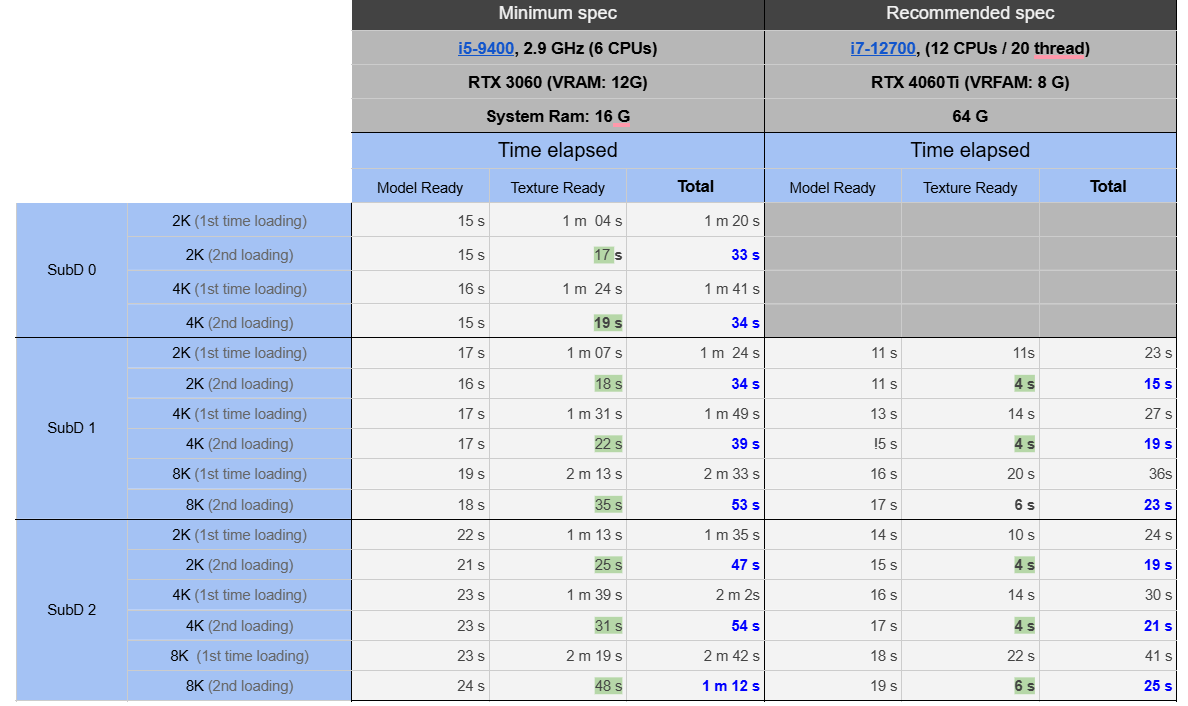
A. Load File Test (Summary)
The first time a character loads, it takes longer because no texture cache exists. Once cached, subsequent loads (shown in blue) are much faster.
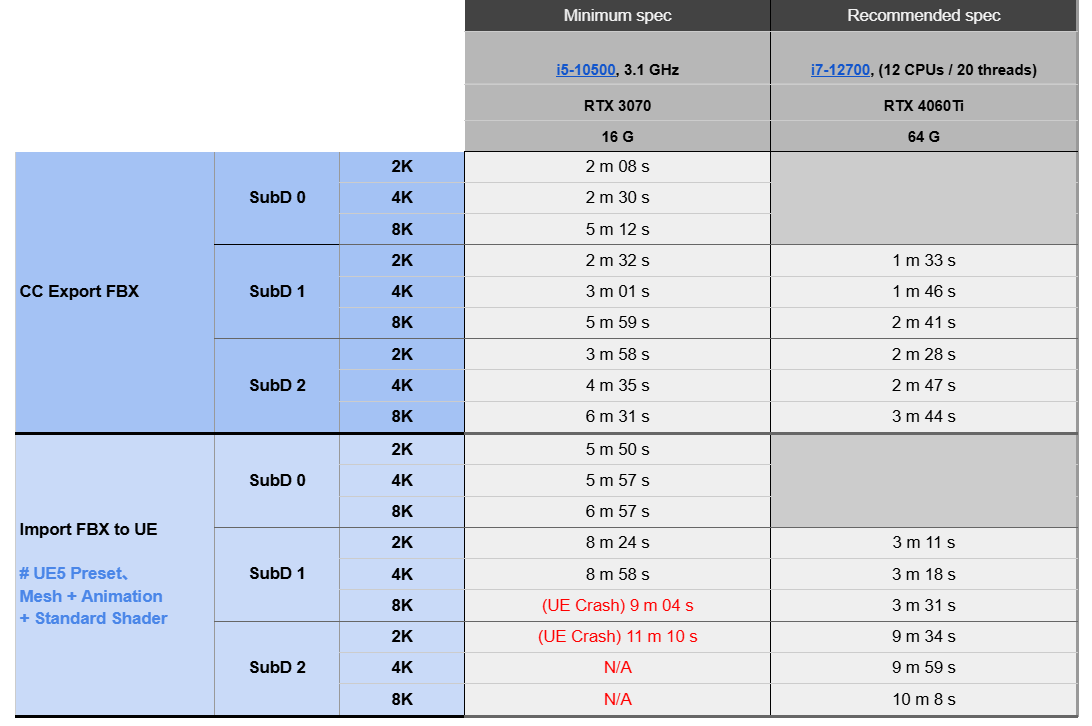
B. Export / Import FBX Test
Recommendation
Since CC5 HD characters include nearly 400 morph sliders, subdivision (SubD) level 1 is recommended in target applications such as Unreal, Maya, and 3ds Max to achieve the best balance of quality and performance.
Minimum Spec Tests
FBX Export from CC
- SubD 0–1 (2K/4K): 2–3 min
- SubD 0–1 (8K): 5+ min
- SubD 2 (8K): 6.5 min
FBX Import for Target Engine (e.g., Unreal Engine)
- SubD 0: 5+ min
- SubD 1: 8+ min
- SubD 2: Crash after ~11 min (Out of memory error)
3. Cross-Version Content Compatibility
¶ Cross-Version Content Compatibility
Why can’t iClone open some iClone 8.6 (or above) files? What does this have to do with CC5?
Although CC5 is compatible with iClone 8.6 (or above), any new CC5 content requires CC5 software components to run properly in iClone 8.6 (or above).
Why are some CC5 files able to be read in CC4 while others can’t?
Since iClone 8.6 (or above) supports both CC4 and CC5, certain files are cross-compatible, while others depend on CC5-specific features and therefore cannot be opened in CC4.
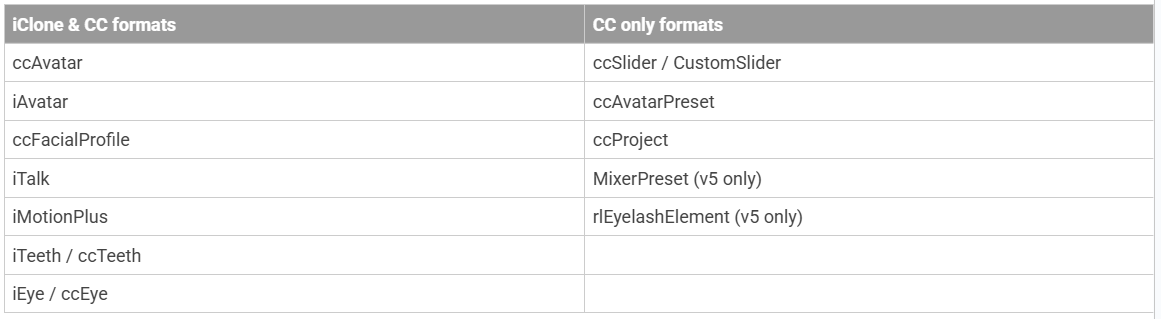
The following files cannot be loaded in CC4 or iClone 8.6 (or above) without the installation of CC5:
- iClone 8.6 (or above) becomes compatible with CC5 files once CC5 is successfully installed.
- Files containing CC5-specific elements cannot be opened in iClone 8.6 (or above) unless CC5 is installed. CC5-specific elements include subdivision levels, eyelash components, corrective expressions, and HD facial profiles.
4. What are CC5 HD characters, how do they differ from CC3+ characters, and are their morph sliders mutually compatible?
¶ What are CC5 HD characters, how do they differ from CC3+ characters, and are their morph sliders mutually compatible?
CC5 HD characters are built on CC3+ base topologies with added subdivisions. Morph sliders between the two versions are fully cross-compatible.
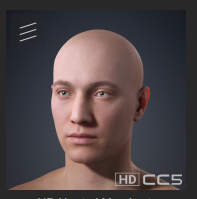
CC5 HD Characters have the following characteristics:
- Based on CC3+ base meshes
- Support subdivisions (from level 1 and up)
- PossessHD facial profiles
For more details, consult the following material:
5. Why introduce the new CC5 HD facial profile? Weren’t previous facial animations already compatible with HD-profile characters?
¶ Why introduce the new CC5 HD facial profile? Weren’t previous facial animations already compatible with HD-profile characters?
The HD facial profile is a new expression system for CC5. It includes all major Extended expressions and is compatible with legacy CC4 Extended and Standard profile characters. Facial animations are fully cross-compatible among them. For the latest information, please see:
For information on included secondary expressions, visit here.
6. How do I restore the Smart Content Manager's database to the default?
¶ How do I restore the Smart Content Manager's database to the default?
- Download the Reset Database Tool:
https://file.reallusion.com/support/ResetDB_IC8CC4CC5CTA5.zip - Close Character Creator 5/iClone 8/Character Creator 4/Cartoon Animator 5 program.
- Uncompress the "ResetDB_IC8CC4CTA5" to local drive.
- Double click the related .bat file to run it.
Eg: For iClone 8, use "Reset IC8 Database and Registry.bat" and so forth. - Wait around 30 seconds for rebuilding the database.
- Done.
7. Redemption Links for Upgrading CC5 and Plugins
¶ Redemption Links for Upgrading CC5 and Plugins
1. How to upgrade my CC4 plugins to work with CC5?
8. How do I install the FashionGen Plug-in and Fabric 100 from the December Content Store Holiday Sale campaign?
¶ How do I install the FashionGen Plug-in and Fabric 100 from the December Content Store Holiday Sale campaign?
Steps:
-
Check your account
Make sure the FashionGen Plug-in is listed on your Reallusion Member Page → Order History. -
Install FashionGen Plug-in
- Open Reallusion Hub on or after Dec 23.
- Refresh the Products section.
- Under Character Creator 5 Plug-ins, find FashionGen Plug-in and click Install.
- **Character Creator 5 **will update to v5.04 automatically if needed.
- (Optional) Install ComfyUI next to the plug-in for local AI generation. Requires at least **11 GB **of disk space. For greater flexibility with FashionGen’s local AI generation, it is recommended to install ComfyUI.
-
Download Febric 100
Open the Smart Content Manager in Character Creator, go to the New Purchases section, and download Fabric 100. -
Start creating
Open the FashionGen panel in Character Creator.
For Character Creator 4 users:
Follow the same steps, but select Character Creator 4 in the product section instead of 5 in Reallusion Hub.